Product
Nov 11, 2025
How to Organize Data Flow from Slack to Notion (By Mapping Slack Channels to Notion Pages) | Tetherly.ai
How to Organize Data Flow from Slack to Notion (By Mapping Slack Channels to Notion Pages) | Tetherly.ai
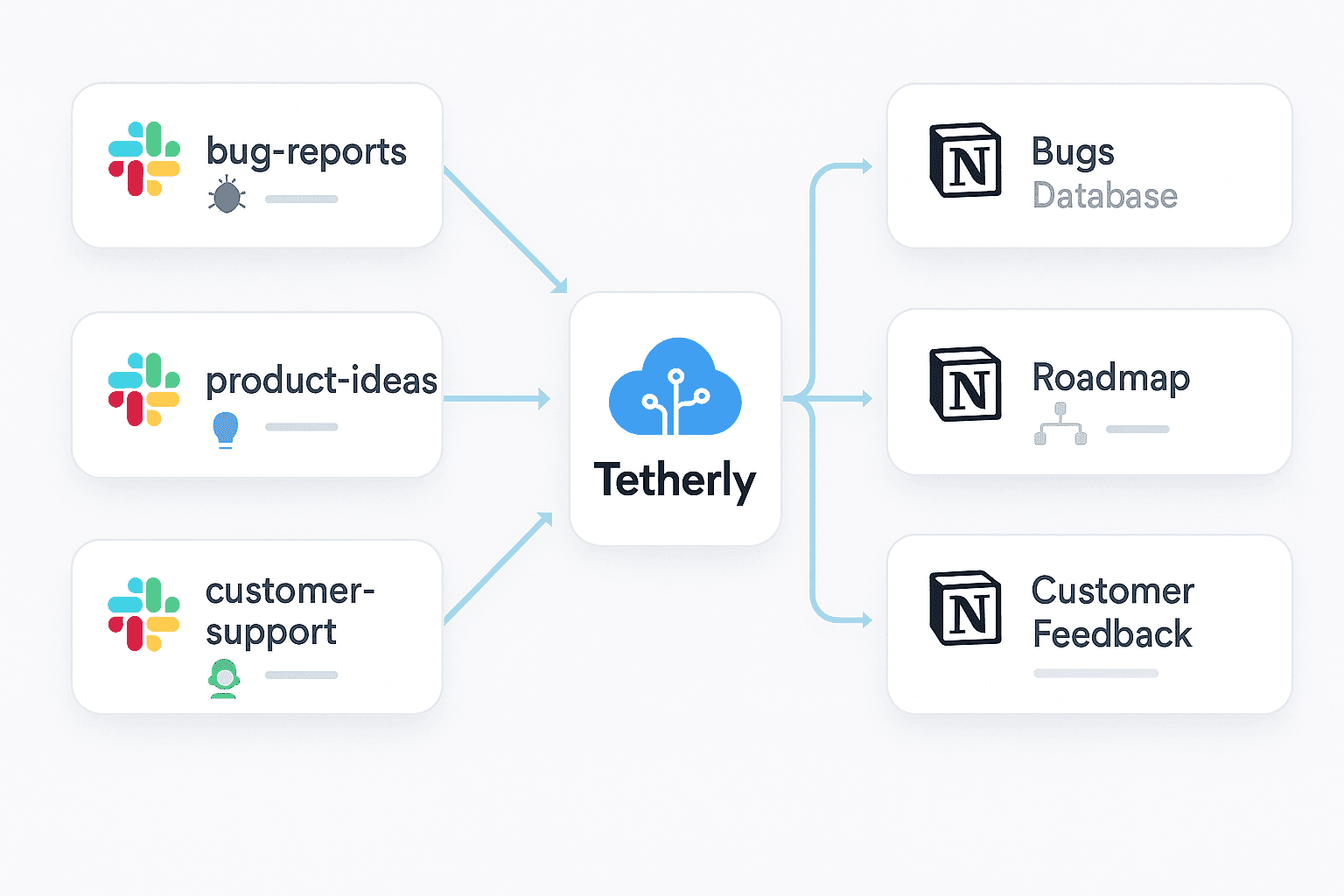
If your Slack ↔ Notion “integration” currently looks like this:
People randomly dumping stuff into one cursed Notion page
Bugs, ideas, incidents and memes all living in the same database
You manually cleaning it up on Fridays with dead eyes and cold coffee
Then you don’t have an integration.
You have a very efficient chaos generator.
This article fixes that.
You’re going to:
Map Slack channels to specific Notion pages & databases
Control what goes where (and what never goes anywhere)
Give your team one-click capture that doesn’t trash your workspace
Let Tetherly do the routing grunt work instead of your brain
If you haven’t actually wired Slack ↔ Notion yet, start here and come back: How to Connect Slack and Notion Without Code
If you want the full “everything this integration can do” view, that lives here: The Complete Guide to the Slack ↔ Notion Integration (2025 Edition)
This article zooms in on one thing only:
Channel mapping.
The difference between “organized system” and “why is there a bug ticket in the company handbook?”
1. What “Organized Data Flow” Actually Means
Every Slack channel already has a job:
#bugs→ “this is broken”#incidents→ “this is really broken”#product→ “what should exist next?”#cs-escalations→ “this customer is on fire”#feedback→ “people have opinions”
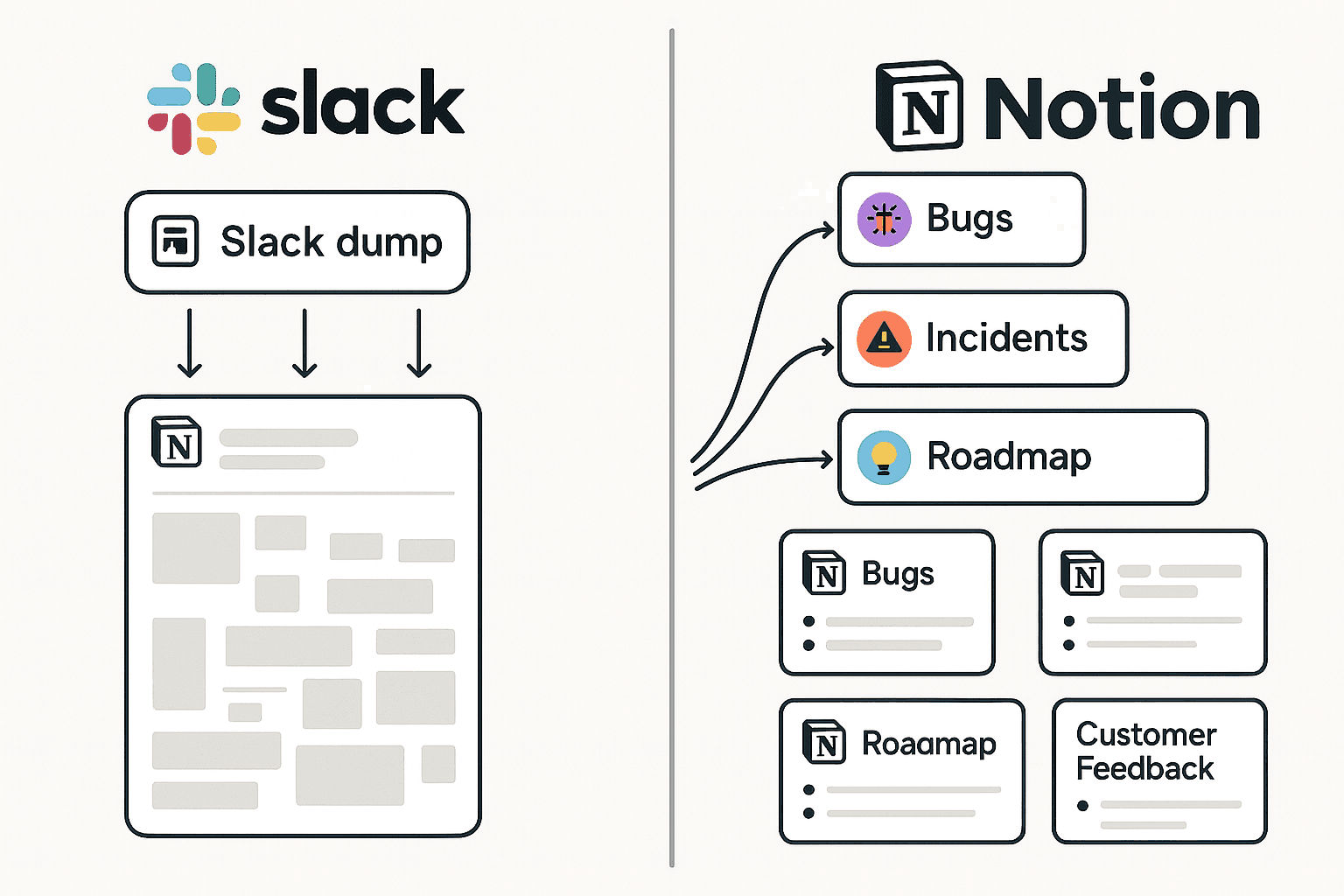
But when you connect Slack ↔ Notion without rules, all of that ends up like this:
Everything goes into a single Notion page called “Slack dump”
Or one sad, overloaded database called “Inbox”
Or 20 random pages someone promised to “clean up later”
Organized data flow means:
Each Slack channel has a default Notion destination
That destination is either:
A database (Bugs, Incidents, Roadmap, Customer Feedback), or
A page (an Account page, Project doc, Team home)
Humans don’t think about routing 50 times a day
Tetherly quietly enforces the rules in the background
1.1 Why You Should Care (Beyond “It Looks Neat”)
When channels are mapped properly:
People actually trust Notion again
Search stops being “guess the keyword” and becomes “find the source of truth”
AI features (auto-fill, summaries, routing) stop hallucinating because the data isn’t junk
You can build dashboards that aren’t lying to you
And, minor perk: your senior people stop burning hours playing “Where did that go?”
If you haven’t set up basic capture yet (how messages get from Slack into Notion), read this next: How to Send Slack Messages to Notion Automatically
2. The Default Slack → Notion Disaster (a.k.a. Your Current Life)
Let’s be honest about what “no mapping” looks like in the wild.
2.1 The Symptom Table
Issue | What Happens | Impact Badge |
|---|---|---|
No routing rules | Messages can land anywhere |
|
Everyone can send anywhere | Sensitive info goes to wrong place |
|
No structure | Everything gloms into one pile |
|
This is literally the system a lot of teams are running on.
An angry customer rant from
#csends up in a generic Inbox databaseA P0 incident in
#incidentsbecomes a random line on some “Notes” pageThe CTO’s roadmap decisions quietly rot in a personal Notion page nobody can find
“Slack → Notion” is technically “working” – it’s just working against you
2.2 Why This Kills Automation and AI
You want:
AI to pre-fill titles, tags, fields
Summaries that make sense
Search that actually finds the right thing
Cool. Then don’t feed the system a soup of:
Bugs + ideas + incidents + memes
Customer data mixed into public docs
“Temporary” pages that are still there 18 months later
Channel mapping isn’t cosmetic. It’s infrastructure.
Without it, every other feature Tetherly gives you (AI modals, thread sync, search, alerts) is fighting uphill.
For context on those other pieces, you’ll want these later:
AI workflows deep dive: Slack ↔ Notion AI Integration: How Tetherly’s AI Actually Works (Auto-Fill, Summaries, Routing)
Thread sync: How to Sync Slack Thread Replies with Notion (Keep Context Forever)
3. How Channel Mapping Works in Tetherly (Without Needing a Zapier PhD)
Channel mapping inside Tetherly is exactly as simple as it should be:
Channel → Mapping Rules → Destination
No scripts. No webhooks. No “ask DevOps”.
3.1 Step 1 — Pick the Slack Channels That Actually Matter
Start with the channels that generate real work:
#bugs#incidents#product#support/#cs/#cs-escalations#customer-feedback#ops
You do not need to map every channel.
If #random is where memes go to die, it can stay unmanaged.
3.2 Step 2 — Assign a Notion Destination
For each channel, you pick:
A database (for structured items you want to track over time), or
A page (for unstructured docs that grow over time)
Examples:
#bugs→ Bugs database#incidents→ Incidents database#product→ Product Ideas / Roadmap database#cs-escalations→ Escalations database#customer-feedback→ Customer Insights database#design-reviews→ Design Decisions page#ops→ Ops Tasks database
The Tetherly UI here is literally:
Choose Slack channel from a dropdown
Choose Notion destination from a dropdown
Save
If your current setup takes 30 minutes in a low-code tool, you’re being robbed.
3.3 Step 3 — Define the Default Behaviour
Now you decide what happens when someone sends content from that channel:
Does a single message create a new record or append to an existing page?
Does a thread create a new Incident / Escalation / Idea?
Should replies sync back into Notion as comments or timeline events?
Example rules:
For
#bugsSingle message → new Bug record
Thread → Bug + “Context” section with thread + “Steps to Reproduce” and “Impact” fields
For
#incidentsThread → new Incident record
Future replies → synced into “Timeline” section
For
#cs-escalationsThread → new Escalation entry linked to a Customer page
The goal isn’t 200 rules. The goal is one sane default per channel that works 80–90% of the time.
The mechanics of “send” (emoji reaction, shortcut, slash command) are all covered step-by-step in: How to Send Slack Messages to Notion Automatically
4. Recommended Mapping Templates (Just Steal These)
You don’t get extra points for originality. You get points for not turning Notion into a landfill.
Here’s a battle-tested layout you can copy.
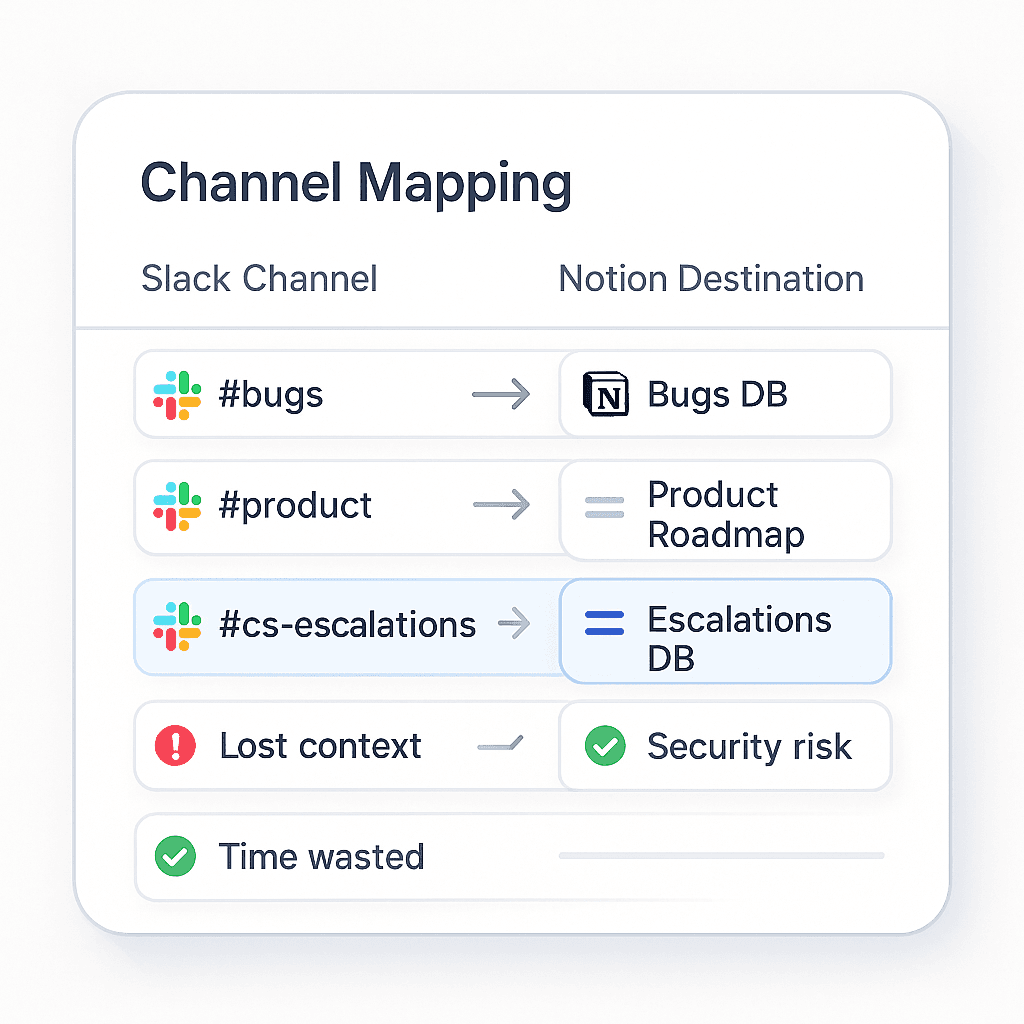
4.1 Product & Engineering
Slack channel → Notion database
#bugsDestination: Bugs DB
Default:
Message → new Bug
Thread → Bug + “Context” section with thread, “Steps to Reproduce” and “Impact”
Key fields: Severity, Status, Owner, Component, Customer, Environment
#incidentsDestination: Incidents DB
Default:
Thread → new Incident
Replies → synced into “Timeline” section
Key fields: Status, Severity, Started at, Resolved at, Owner, Root Cause
Combine with thread sync guide: How to Sync Slack Thread Replies with Notion (Keep Context Forever)
#feature-ideas/#productDestination: Product Ideas / Roadmap DB
Default:
Message → new Idea
Thread → Idea + “Discussion” section
#tech-debtDestination: Tech Debt DB
Default: Message → new item
Key fields: Area, Risk, Effort, Owner
4.2 Customer Success & Support
#supportDestination: Support Inbox / Issues DB
Default: Message → new ticket
#cs-escalationsDestination: Escalations DB
Default: Thread → new Escalation + link to Customer page
Fields: Customer, MRR, Risk, Owner, Status, Summary
#customer-feedbackDestination: Customer Insights DB
Default: Message → new Insight
Fields: Customer, Segment, Product Area, Sentiment, Theme
Later, when someone asks “What have we heard from Acme about billing?” you just hit search from Slack itself: How to Search Notion Docs from Slack (Instantly)
4.3 Marketing, Ops & Leadership
#marketingDestination: Campaigns DB or Marketing Tasks DB
Default: Message → new campaign/task
#opsDestination: Ops Tasks DB
Default: Message → new task with tag = area
#leadership/#exec-updatesDestination: Leadership Decisions DB
Default: Thread → new Decision record with AI-generated summary
5. Where Tetherly’s AI Fits Into Channel Mapping
Channel mapping gives you structure.
AI gives you speed and consistency on top of that structure.
If you want the deep nerd dive, that’s what the AI article is for: Slack ↔ Notion AI Integration: How Tetherly’s AI Actually Works (Auto-Fill, Summaries, Routing)
Here’s the short version as it relates to mapping.
5.1 AI-Assisted Routing
Even with mapping, weird things happen:
Someone screams “prod is down again for Acme” in
#general.
There’s no explicit mapping for #general, but the AI can still infer:
This smells like an Incident
“Acme” is probably a Customer
“Prod is down” is not a P3
So the modal you see looks like:
Destination: Incidents DB (suggested)
Title: “Acme – Checkout down (Stripe error)”
Severity: P0 (suggested)
Linked Customer: Acme Corp
You can override anything, but 80% of the admin work just disappeared.
5.2 AI-Filled Modals Per Channel
Because channels are mapped, the AI can specialise per channel:
From
#bugs:Fills fields like Severity, Component, Steps to Reproduce, Impact
From
#product:Fills Problem, Proposed Solution, Impact, Effort guess
From
#cs-escalations:Identifies Customer, Risk, Sentiment, Owner
Same integration, different channels, different behaviour.
The mapping is the context that makes AI actually useful instead of generic.
6. Keeping Threads and Context Intact (So History Isn’t Useless)
Messages are atomic.
Threads are where real decisions happen.
Channel mapping on its own answers, “Where does this go?”
Thread sync answers, “Does the context survive?”
6.1 Map Threads, Not Just Messages
For channels like #incidents, #cs-escalations, #product:
Your default should be: “When I send a thread, create a new record”
Not “just paste the first message into Notion and forget the rest”
With Tetherly:
You send the thread to Notion
Tetherly creates the Incident / Escalation / Idea record
AI creates a “Story so far” summary + bullet points
Future replies sync back as comments or a timeline
6.2 Search Across the Mapped Data from Slack
Once mapping + thread sync are in place, this is what “knowledge management” becomes:
Someone types
/tetherly search "Acme outage"in SlackTetherly surfaces:
Incidents for Acme
Related bugs
The escalation thread
Any follow-up actions
7. Security, Governance, and “Let’s Not Accidentally Leak Payroll Data”
If you’re in a regulated industry (or just not reckless), mapping is how you avoid shooting yourself in the foot.
7.1 Control Who Can Send What Where
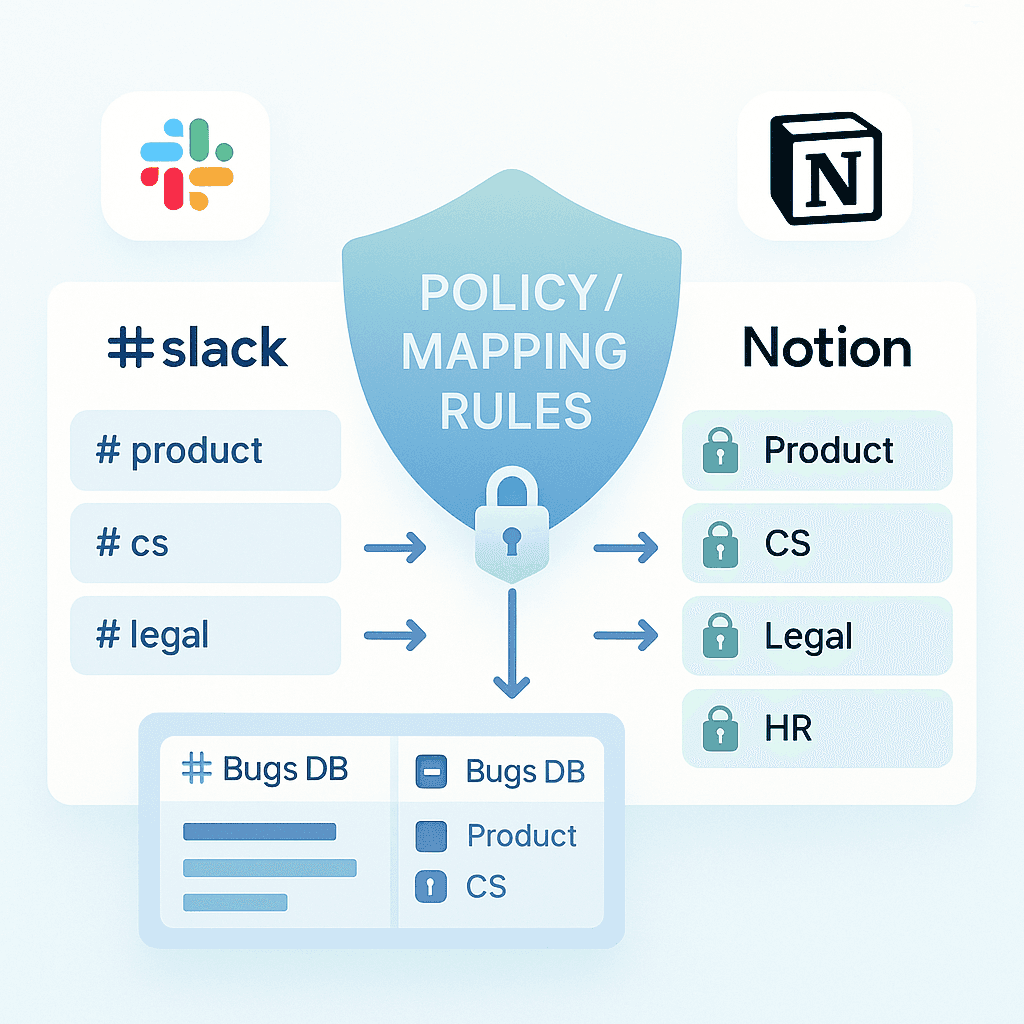
With Tetherly’s mapping rules:
Some channels are allowed to send only to specific workspaces
Some Notion workspaces or databases are not valid destinations
You can restrict which Slack workspace maps into which Notion workspace
Examples:
#legal→ only allowed to send to Legal Workspace → Legal Docs#payroll→ only allowed to send into HR Workspace → Payroll IssuesPublic or external channels → blocked from mapping to sensitive databases
So instead of “please be careful”, you have hard rails that prevent dumb mistakes.
7.2 Mapping as a Governance Guardrail
Good governance doesn’t mean a 30-page policy nobody reads.
It means:
#randomand#memeshave no mappingExec channels never accidentally post into public wikis
System-of-record databases only accept input from known channels + roles
Tetherly’s mapping rules and permission model give you that without turning every action into a committee meeting.
8. Rollout Plan: How to Do This Without Triggering a Tool Rebellion
Don’t announce a “Notion Restructuring Initiative”.
Just quietly make things stop sucking.
Phase 1 — Map the Obvious Chaos
Pick 3–5 channels that cause the most damage when unmanaged:
#bugs#incidents#support/#cs/#cs-escalations#product#customer-feedback
For each:
Choose the correct Notion database
Define a simple default rule (“new record per message/thread”)
Turn on mapping in Tetherly
Tell your team:
“When you send to Notion from these channels, stuff now lands in the right database automatically. No dropdown roulette.”
Phase 2 — Layer in AI Suggestions
Once people see things landing in the right place:
Enable AI-filled modals
Position it correctly:
“The AI will prefill titles, tags, summaries.
Your job is to fix what’s wrong, not write from scratch.”
Phase 3 — Stitch Threads, Search & Notifications
Now connect the rest of your Slack ↔ Notion system:
Turn on thread sync for channels like
#incidentsand#cs-escalationsTeach people to search Notion from Slack instead of pinging each other for links
Add a tiny set of high-signal Notion → Slack alerts:
New P0 incident
Status change to “Blocked” or “Past due”
Red customer health scores
Use this when you design your alerts: Notion Slack notifications without the spam: How Tetherly.ai does alerts properly
For the full “how all these pieces fit together” view, again: The Complete Guide to the Slack ↔ Notion Integration (2025 Edition)
Phase 4 — Weekly Audit & Tune-Up
For the first month, once a week:
Open your mapped databases in Notion
Scan the last ~20 entries
Look for:
Wrong destinations
Weird titles
Missing or useless tags
Update:
Mapping rules
AI behaviour (which fields it fills, how it names things)
You’re aiming for “nobody is copy-pasting manually anymore”, not perfection.
9. FAQ: Channel Mapping Without the Corporate Fluff
“Do we need to map every Slack channel?”
Absolutely not.
Map:
Channels where real work starts (bugs, incidents, projects, escalations)
Channels that create reusable knowledge (decisions, feedback, insights)
Everything else can happily stay Slack-only.
“What if one channel needs multiple destinations?”
That’s normal.
Set one primary mapping (e.g.
#product→ Product Ideas DB)Allow humans to override in the modal (e.g. attach to an existing PRD page)
Let AI suggest “this looks like a Bug” vs “this looks like an Idea”
Defaults handle the 80%. Override handles the edge cases.
“What happens if we change our Notion structure?”
Without Tetherly: enjoy rewriting automations and docs.
With Tetherly:
Point the channel mapping at the new database or page
Keep the same Slack behaviour
Move old data at your own pace
The Slack side doesn’t notice. Your automations don’t collapse.
“How does this play with real-time sync and notifications?”
Once mapping is in place:
Messages and threads land in the right Notion records instantly
Changes to those mapped records can trigger targeted Slack alerts
Your team experiences it as “things just show up where they should”
The real-time + routing logic is described in more detail in the main integration guide and the notifications article. For now, get the foundations (mapping + capture) right.
10. Where You Go From Here
You can keep doing what you’re doing:
Manually deciding, 50 times a day, where each message belongs
Hunting through Slack archaeology to reconstruct decisions
Treating Notion like a dumping ground with a search bar
Or you can spend one afternoon setting up Tetherly channel mapping and:
Automate 80% of the routing decisions
Give AI something structured to work with
Make Slack ↔ Notion feel like one system, not two apps duct-taped together
Your next moves:
Wire the basics
Lock in structure
Use this article’s templates to map your core channels
Revisit the pillar guide for the full architecture: The Complete Guide to the Slack ↔ Notion Integration (2025 Edition)
Add context & discovery
Then, add AI's help
Set the rules once.
Let Tetherly babysit the flow forever.