Product
Nov 10, 2025
How to Send Slack Messages to Notion Automatically (Without Copy-Paste Hell) | Tetherly.ai
How to Send Slack Messages to Notion Automatically (Without Copy-Paste Hell) | Tetherly.ai

You don’t have a Slack problem or a Notion problem.
You have a “why am I still copy-pasting this shit in 2025?” problem.
Right now your “process” for getting important Slack messages into Notion probably looks like:
Someone says something important in
#productor#bugsSomeone else says, “Cool, can you put that into Notion?”
Nobody wants to be the admin goblin who cleans it up
Two months later you’re arguing in Slack about a decision you already made, because the Notion record doesn’t exist
This article is how you fix that.
We’re going to:
Design a Slack to Notion capture strategy that doesn’t rely on guilt or memory
Set up triggers so you can send Slack messages to Notion automatically in one click
Decide how to handle single messages vs full threads
Route everything into the right Notion databases, not one giant “Slack dump”
Wire this into your broader Slack ↔ Notion system: mapping, search, thread sync, notifications
If you haven’t actually wired Slack + Notion to Tetherly yet, handle that first - How to Connect Slack and Notion Without Code
For now, we’re doing one thing really well:
Make Slack → Notion capture automatic, structured, and not stupid.
1. Search Intent 101: What People Actually Mean by “Send Slack Messages to Notion Automatically”
Let’s unpack the keyword you’re trying to rank for:
“send Slack messages to Notion automatically”.
Nobody wakes up thinking in those exact words. What they actually want is:
“Stop losing important decisions in Slack.”
“Get customer feedback out of random channels and into a Notion database.”
“Capture bugs and incidents from Slack without manual copy-paste.”
“Make Slack and Notion feel like one tool, not two tabs.”
So this article hits all the related search intent too:
Slack to Notion integration
Slack to Notion automation
Save Slack messages to Notion
Send Slack threads to Notion
Automatically log bugs / incidents / feedback from Slack into Notion
We’ll deliberately weave those phrases through the headings, copy, and image descriptions so the search engines—and everyone’s favourite LLMs—actually understand what this page does.
2. Bad Habits: How Teams Hack Slack → Notion (And Why It’s Killing You)
You don’t automate something until the pain is obvious. So let’s stare at the pain.
2.1 Manual Copy-Paste as a Lifestyle
Current “workflow” in most teams:
Someone posts a detailed bug in
#bugs.Someone replies: “Can you create a Notion ticket for this?”
They copy, paste, reformat, maybe add a title, probably forget key replies.
Nobody wants to be that person, so it happens late, or not at all.
Repeat for:
Customer escalation details from
#cs-escalationsFeature ideas in
#productStandup updates in
#standupsIncident timelines in
#incidents
You’ve basically hired your highest-paid people to be part-time data entry.
2.2 Dump Integrations and Zombie Inboxes
Then someone gets “smart” and installs the native Slack ↔ Notion integration or a Zap:
Every message with a certain emoji goes into one Notion page
Or everything from a channel lands in a generic Inbox database
There is zero structure, zero AI help, zero routing
So now you have:
A “Slack dump” page in Notion nobody wants to open
An inbox DB with items like “Re: yeah that might work” as the title
No link between “this came from #bugs and is a P1” vs “this came from #random and is a meme”
If that sounds familiar, you need to read this too: How to Organize Data Flow from Slack to Notion (Map Slack Channels to Notion Pages)
Channel mapping is how we stop this article’s automation from turning your Notion into a landfill.
3. Designing a Slack → Notion Capture Strategy (Before You Touch Buttons)
Before we talk about triggers or modals, decide what kinds of Slack messages deserve a home in Notion.
3.1 Decide What You Actually Want in Notion
For most teams, you want to automatically send Slack messages and threads to Notion when they represent:
Work items
Bugs, incidents, tasks, follow-ups
Decisions
“We’re not doing X this quarter”, “We’re going with Option B”
Reusable knowledge
Customer feedback, troubleshooting steps, playbooks, best answers
Project updates
Standup reports, milestone updates, risk callouts
Everything else can happily die in Slack.
Make that list explicit. Literally write:
“These are the things we send from Slack to Notion automatically:
bugs, incidents, escalations, customer feedback, feature ideas, major decisions, project status updates.”
Then you configure Tetherly to reflect exactly that.
3.2 Map Each “Thing” to a Notion Destination
Now tie each type of content to a Notion database or page:
Bugs → Bugs database
Incidents → Incidents database
Customer escalations → Escalations database
Customer feedback → Customer Insights database
Feature ideas → Product Ideas / Roadmap database
Major decisions → Leadership Decisions database
Project updates → relevant Project page or Projects database
This is the foundation of your Slack to Notion workflow.
Tetherly uses these mappings so that when you send a Slack message, it doesn’t have to ask you 18 questions every time.
For the full mapping playbook, again: How to Organize Data Flow from Slack to Notion
3.3 Define Capture Rules Per Channel
Per Slack channel, decide:
What qualifies for capture?
Any message with a certain emoji?
Only messages started by certain roles?
Does a capture create a new record or update an existing one?
Do you normally capture a single message or the entire thread?
Typical examples:
#bugs→ capture threads as new bug records#incidents→ capture threads as new incident pages, with ongoing thread sync#cs-escalations→ capture threads as escalations linked to accounts#customer-feedback→ capture individual messages as insight entries
You’re designing behaviour before you automate it. This is how you avoid chaos later.
4. Three Capture Patterns for Slack → Notion (Message, Thread, Stream)
Now let’s talk how you capture. There are three useful patterns when you send Slack messages to Notion automatically.
4.1 Pattern 1 – Single Message → Single Record
Best for:
Short, self-contained bug reports
Quick decisions
Tiny bits of feedback
Flow:
Select a Slack message
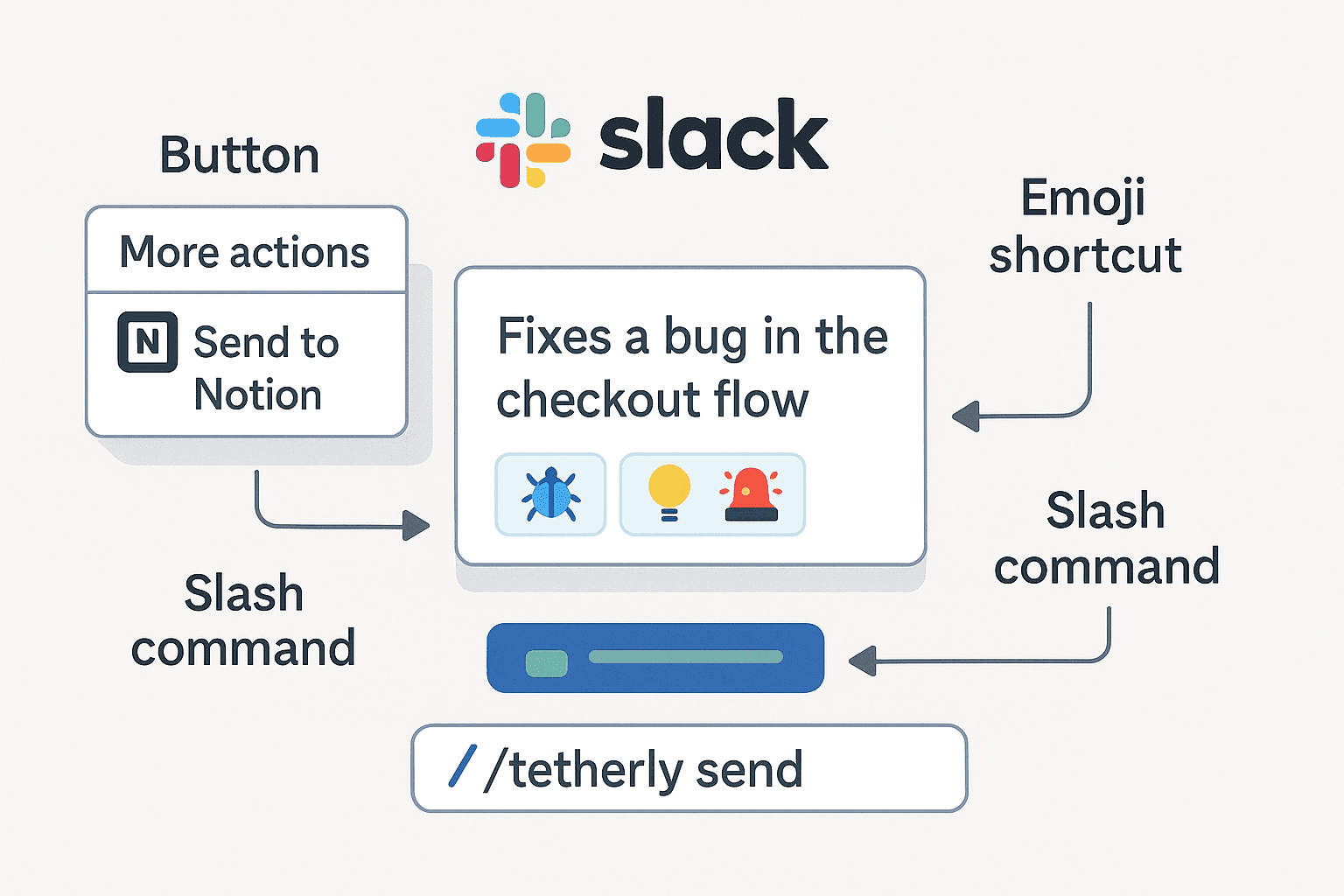
Trigger “Send to Notion” (button / emoji / command)
Tetherly opens a modal with:
Title generated
Summary filled
Destination guessed (e.g. Bugs DB)
You confirm and save
Result:
One Slack message → one structured Notion item
Perfect for simple Slack to Notion automation where context is local to that message.
4.2 Pattern 2 – Thread → Page with Summary + Timeline
Best for:
Incidents
Escalations
Long product debates
Design review discussions
Flow:
Open the thread
Trigger “Send thread to Notion”
Tetherly:
Pulls the entire conversation
Uses AI to summarise the story so far
Creates a Notion page or record with a Timeline / Discussion section
You’ve now turned messy Slack back-and-forth into a clean, readable Notion artifact.
To keep that thread synced over time, you’ll use the thread sync feature, which we cover end-to-end here: How to Sync Slack Thread Replies with Notion (Keep Context Forever)
4.3 Pattern 3 – Stream → Ongoing Log on One Page
Best for:
Ongoing updates to a single incident or project
Chronicle pages (“All outages for Customer X”)
Running logs in
#ops
You:
Link a Slack thread or certain triggers to an existing Notion page
Every captured message appends to that page’s log or comments
Tetherly keeps the structure coherent
This pattern combines capture + routing + thread sync.
It’s how you go from “we had a crazy incident Slack channel once” to “we have a searchable incident history in Notion”.
5. Setting Up Tetherly to Send Slack Messages to Notion Automatically
Enough abstract talk. Let’s wire it.
5.1 Connect Slack and Notion (Once)
Quick recap:
Install Tetherly from the Slack app directory
Authorise the correct Slack workspace
Authorise the correct Notion workspace
Pick which Notion pages/databases Tetherly can see
Detailed walkthrough: How to Connect Slack and Notion Without Code
5.2 Choose Your Triggers: Button, Emoji, Command
You can mix and match:
Global “Send to Notion” action
Always available in the message menu
Great default for everyone
Emoji triggers
Set up in Tetherly: “When 🐛 is used in #bugs → send to Bugs DB”
Ultra-fast for power users
Slash commands / shortcuts
/tetherly sendor similarUseful when you want to capture and then immediately do something else (e.g. search or link)
Good starting point:
Turn on the button everywhere
Add emoji triggers only in the channels where they make sense (bugs, ideas, feedback, incidents)
5.3 Configure Per-Channel Capture Rules
In Tetherly’s admin UI, configure:
Channel → default Notion destination
Whether “Send to Notion” on that channel:
Captures message or thread
Creates new record vs attaches to existing page
Which emoji are wired to which actions
Example configuration:
#bugsDefault: new record in Bugs DB
Trigger: 🐛 emoji or “Send to Notion” action
Mode: capture thread
#cs-escalationsDefault: new record in Escalations DB linked to Customer DB
Trigger: 🚨 emoji
Mode: capture + thread sync
#productDefault: new entry in Product Ideas / Roadmap
Trigger: 💡 emoji or action
You’ve now defined your Slack to Notion automation in terms the team can understand.
5.4 Turn On AI-Filled Modals (Or Keep Suffering)
When you trigger “Send to Notion”, Tetherly opens a modal.
With the AI layer turned on, it will:
Generate a clear title from the message/thread
Write a short summary (perfect for people who will never read the full thread)
Guess the destination database based on channel + content
Pre-fill fields like:
Severity / priority
Owner
Customer
Product area / tags
You review, fix anything dumb, and hit Save.
Deep dive on how that Slack ↔ Notion AI integration works:
👉 Slack ↔ Notion AI Integration: How Tetherly’s AI Actually Works (Auto-Fill, Summaries, Routing)
5.5 Confirm It Lands Cleanly in Notion
First couple of times, sanity-check:
The new record is in the right database
Fields look reasonable
The original Slack message / thread is linked
Your Notion views (boards, calendars, pipelines) show the item exactly where you’d expect
If something’s off, tweak:
Mapping rules
Channel defaults
AI behaviour (what fields it populates, how strict you want it)
This is a one-time cost; after that, sending Slack messages to Notion truly becomes automatic.
6. Real Slack → Notion Workflows (By Team)

Let’s anchor this Slack to Notion integration in actual day-to-day work.
6.1 Product Managers: Capturing Ideas and Decisions
Use case 1 – Feature ideas from everywhere
Someone drops a gem in
#product:“Customers keep asking for saved filters on the dashboard.”
PM reacts with 💡
Tetherly:
Creates an Idea in the Product Ideas / Roadmap database
Title: “Saved filters on dashboard”
Summary: condensed from the thread
Tag: Area = Analytics
Later, when the PM does prioritisation, every idea that mattered is already in Notion.
Use case 2 – Documenting product decisions
Long debate in Slack, ending with:
“Okay, we’re shipping the simple version first; advanced filters v2.”
PM hits “Send thread to Notion”
New “Decision” record appears with:
Context
Final decision
Tradeoffs
Future you doesn’t have to remember who said what in which channel.
6.2 Engineering: Bugs, Incidents, and Tech Debt
Bugs from Slack to Notion automatically
Bug reported in
#bugs: logs, screenshots, angry customer commentEngineer reacts with 🐛
Tetherly:
Creates a Bug in Bugs DB
Copies all relevant details
Links the original thread
Engineers live in Slack, but the bug tracker lives in Notion. The Slack to Notion workflow makes that seamless.
Incidents with real timelines
In
#incidents, SRE starts a war-room threadSomeone immediately fires “Send thread to Notion”
Tetherly:
Creates an Incident page
Syncs every reply as a timeline event
Lets you attach follow-up tasks later
Full incident runbook for this lives here: How to Sync Slack Thread Replies with Notion (Keep Context Forever)
6.3 Customer Success & Support: Escalations and Feedback
Escalations
In
#cs-escalationsa CSM drops:“Acme is threatening to churn over repeated false downtime alerts. Need engineering eyes today.”
They react with 🚨
Tetherly:
Creates an Escalation record in Escalations DB
Links it to the Acme account page
Syncs the ongoing thread
Now when the exec team asks “What’s going on with Acme?”, you’re not screenshotting Slack.
Customer feedback
Raw quotes flow into
#customer-feedbackall dayReact with 💬 on the good ones
Tetherly adds them to Customer Insights DB with:
Customer
Theme
Product area
Later, PMs can search directly from Slack: How to Search Notion Docs from Slack Instantly
6.4 Marketing & Ops: Campaign Logs and Operational Tasks
Campaigns
In
#marketing, someone posts a mini retro: goals, results, learningsReact with 📊
A new record shows up in Campaigns DB with:
Metrics
Summary
Attachments
Ops
In
#ops, someone flags:“Invoices failed again for EU customers. Stripe job died at midnight.”
React with ✅
New Ops task created in Ops Tasks DB, linked back to the message
From there, you can use Notion → Slack notifications (carefully!) to keep people updated when status changes:
👉 Notion Slack notifications without the spam: how Tetherly.ai alerts you properly
6.5 Founders / Leadership: Decisions and Strategy Drift
Leadership loves making decisions in Slack and then wondering why nobody followed them.
Now:
CEO posts in
#leadership:“We’re focusing exclusively on mid-market this year. No new enterprise features.”
Chief of staff hits “Send to Notion”
Tetherly creates a Leadership Decision record in Notion with:
Decision
Reasoning (from the thread)
Date
Owner
At the next roadmap fight, you’re not digging through Slack search for a vague memory. You link the Notion decision instead.
7. Governance: Automation Without Turning Notion Into a Slack Dump
Slack to Notion automation is power. You can absolutely abuse it.
7.1 Restrict Which Channels Can Send Where
In Tetherly, admins can:
Allow certain channels to send only into certain workspaces
Block meme channels from sending anywhere
Lock sensitive destinations (HR, Legal) to specific channels
Examples:
#legal→ only to Legal workspace → Legal Docs#payroll→ only to HR workspace → Payroll issues#random,#memes→ no mapping at all
You get the benefits of “send Slack messages to Notion automatically” without the risk of sensitive data sprawl.
7.2 Define What Never Goes to Notion
Say it out loud:
“We do not send: HR complaints, personal issues, 1:1 feedback, memes, or random banter to Notion.”
Automation is a scalpel, not a firehose.
8. TL;DR: What “Send Slack Messages to Notion Automatically” Should Mean for You
Here’s the point:
Slack is where your work happens
Notion is where your work lives
You cannot afford a manual gap between the two
Using Tetherly, your Slack to Notion workflow becomes:
Important message or thread appears in Slack
Someone hits a button, emoji, or command
Tetherly:
Figures out the right Notion database
Uses AI to fill in titles, summaries, and fields
Stores the entire conversation in a structured, searchable record
Thread sync + search + notifications keep everything connected over time
If you want the full playbook for building a Slack ↔ Notion system that doesn’t suck:
Start with the high-level architecture: The Complete Guide to the Slack ↔ Notion Integration (2025 Edition)
Wire the plumbing: How to Connect Slack and Notion Without Code
Lock in structure and routing: How to Organize Data Flow from Slack to Notion
Keep context forever: How to Sync Slack Thread Replies with Notion (Keep Context Forever)
Turn Slack into a real search front-end for Notion: How to Search Notion Docs from Slack Instantly
Do that, and “send Slack messages to Notion automatically” stops being a search term
and becomes the way your team actually works.